Sunday, April 3, 2016

Hub vs Switch: Comparison And Difference Between Networking Devices


Short Bytes: Hub vs Switch – which one is better? Which one should be used for faster communication? Which one is more secure? Well, we answer all the aspects of using a hub and a switch against each other in this article.
Hub was very popular before the arrival of a Switch. So, what was something special inside a Switch which made Switch so popular? We will take a look at all the differences and functional aspects between a Switch and hub.
Let’s take a look:

Hub vs switch — Comparison and differences

Hub’s properties:

  • Works at the physical layer of the OSI layer
  • Uses ‘Store and forwarding’ when it receives a data packet
  • A virtual LAN cannot be created using a hub
  • Usually comes with 4 to 12 ports
  • Only transmits electrical signals or the bits (relate it with physical layer)
  • Does not use any software
  • Does not have its own memory for memorizing the devices connected over to the network
  • Cannot learn the MAC addresses and neither can forward them
  • Supports Half-duplex transmission mode
  • A hub has only one broadcast domain
  • Cannot support Spanning tree protocol
  • Packet collisions occur commonly inside a hub

Switch’s properties:

  • Works at the Data link layer or layer two of the OSI model
  • Uses ‘filter and forwarding’ when it receives a data packet
  • A virtual LAN can be created using a Switch and it can also work as a multi-port bridge
  • Usually comes with 24 to 48 ports
  • Transmits Frames (layer 2 packets) and Layer 3 packets of the OSI model
  • Uses its software for admin access and other configurations
  • Has its own memory for memorizing the devices connected over to the network
  • Can learn the MAC addresses and stores those addressed in a CAM (Content Addressable Memories)
  • Supports Half as well as full duplex transmission mode
  • A hub has only one broadcast domain
  • Can support Spanning tree protocol
  • No packet collisions occur commonly inside a hub

Working differences — Hub vs  switch

Before you proceed to further reading, have a look at the basic concepts of the different networking devices and hardware types — hub, switch, router, modem, bridge, repeater.
Let’s say a few computers are connected to a hub in one of the scenarios and in the other scenario, they are connected to a switch.
In the Hub’s case, when all the computers send data packets, those are copied as a signal at the different ports of the hub. That means, the hub simply replicates the signal and the intended recipient gets the packets. Since there is no concept of filtering the packets and forwarding those, there will be a lot of collisions as well.
When the same data packet will arrive at one of the ports of a Switch, the following generic steps will take place:
  • A data packet arrives at one of the ports.
  • The Switch checks of the address inside the data packet (also called as a frame of layer 2 on OSI model)
  • The switch has a CAM table and it will match the address of the frame with one of the addresses of the CAM table.
  • If the address matches, the switch known the particular port at which that address resides. So the Switch will forward that packet to that particular port and this is also called as ‘Filter and forwarding’ in computer networks terms
  • These things are all possible because of a configuration file and memory inside a Switch which is absent in a hub.
  • The network admin can configure the switch according to his preference.
  • Because of the filter and forwarding, there is no collision inside a switch.

“Mr. Linux” Of Oracle Joins Microsoft To Lead Open Source And Linux Efforts


Short Bytes: Microsoft’s HR department has poached the man who turned Oracle into a Linux-dominated company. Wim Coekaerts, commonly known as Oracle’s “Mr. Linux”, has joined Redmond folks to head up its Linux and open source efforts.
This is an established fact that Microsoft loves Linux and open source technologies. The recent developments at Build Developer Conference 2016 will soon allow developers to use Ubuntu on Windows 10.
In order to fasten the progress of Linux and open source projects at Redmond, the company’s HR department has stepped up its game. The software giant has reportedly poached Wim Coekaerts, commonly known as Oracle’s “Mr. Linux”.
In the tech world, Coekaerts is well-known for his contribution to Linux projects and bringing the open source technology to Oracle. He also turned Oracle into a Linux distro-maker with the launch of Oracle Linux for the enterprise.
Talking to ZDNet, Mike Neil, Microsoft’s Corporate VP of the Enterprise Cloud has confirmed this news.
“Wim Coekaerts has joined Microsoft as Corp VP of Open Source in our Enterprise Cloud Group. As we continue to deepen our commitment to open source, Wim will focus on deepening our engagement, contributions and innovation to the open-source community,” he said.
Microsoft became involved with Linux since Satya Nadella became CEO, going as far as creating a custom Linux-based software for networking and Azure.
The company hasn’t told what parts of its open source efforts will be taken care by Coekaerts, but it’s important to note that he is the person who turned Oracle into a company dominated by Linux-based technologies.
So, is it another indication that Microsoft is soon going to make a Linux distribution and turn our April Fool’s “Windows L” joke into a reality? We’ll have to wait and find out.

Friday, April 1, 2016

Here are some “very basic” tips to keep your Windows 10 PC running smoothHere are some “very basic” tips to keep your Windows 10 PC running smooth


Tips to make your Windows 10 PC run faster

Experts say, Windows 7 and XP are best in terms of UI and hardware management. And the latest Windows 10 is somewhat a “bulky” OS. So if you are among the people who have updated their Windows, you may be facing issue of reduced performance(specially if you were a Windows 7 user). We are providing some stuff here, These tips should help you improve performance on your computer by cleaning the clutter you don’t really need.

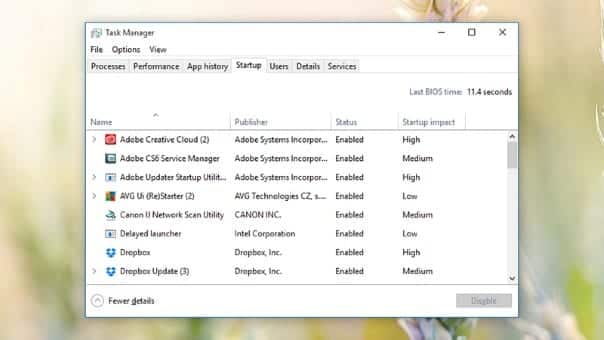
1: Prevent programs from loading on startup

Some programs are launched at startup, these programs are ones which Windows tries to provide fast access to . But this approach is less efficient at times when such programs are seldom used.
You have to visit the Startup tab of the Task Manager (Ctrl+Shift+Esc) or use Microsoft’s official (and free) “Autoruns for Windows” tool to see what’s launching alongside the OS. From there, you can disable anything you don’t want. If there’s a particular entry you’re not sure about, err on the side of caution and leave it to be.
Windows

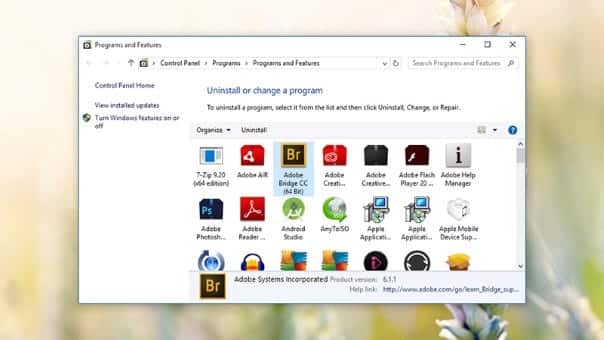
2:Uninstall unnecessary apps

Unused applications don’t necessarily do your PC any direct harm, but they take up valuable hard disk space and room in the memory, and tend to mean Windows is working harder than it needs to. They can also cause unexpected bugs and incompatibility issues with other devices and apps.
Type “uninstall” in the taskbar search box then pick Change or remove a program to see all the applications currently stored on your machine. For any that have been gathering dust for a few months, click the relevant icon and select Uninstall, then follow the instructions on screen to complete the process.
Windows

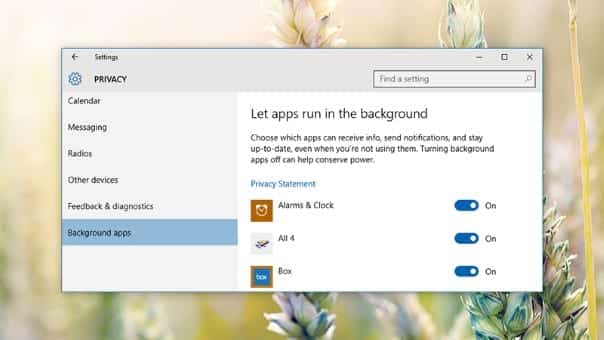
3:Disable background apps

Some apps run in background by default, and luckily you can change this setting.
To modify software running in the background, go to Settings from the Start menu then click Privacy and Background apps. Turn off the toggle switches next to the apps you don’t want to have running all the time. Of course, you can still launch these programs manually if you need them.
Windows

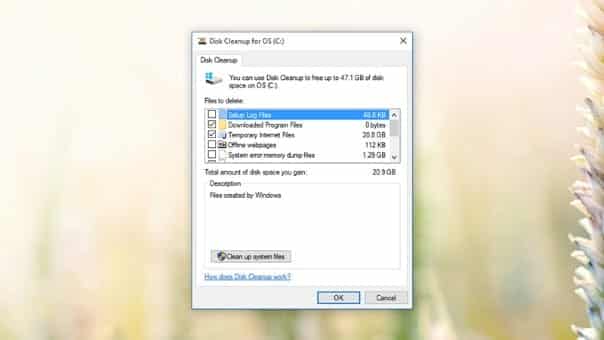
4.Clean up the disks:

Microsoft’s Disk Cleaner utility has survived through all of the recent Windows upheaval, and it’s still a great way to sweep out some of the temporary data and unnecessary files taking up room on your hard drive. Even better, now it’s mostly automatic and easy to navigate.
Right-click on any drive in File Explorer, then choose Properties and Disk Cleanup (under the General tab) to find the program. It targets files including system memory dump files and temporary internet files, and you can review its findings before clicking on the OK button to confirm.
Windows
A great idea is to use a speedup tool like CCleaner Professional, which will perform everything mentioned above for you.

The World’s First Hack Was Done On A Wireless Transmission in 1901


Did you know the world’s first hack took place in 1901?

The world’s first hacking happened 115 years ago! Surprised ? In 1901, Guglielmo Marconi, the Italian inventor and electrical engineer was all set to demonstrate wireless transmission in England. Not many know that Marconi had many rivals who wanted to prove him wrong.
Marconi claimed that his Wireless transmission was unhackable and could not be interrupted or encroached on. A rival inventor named Nevil Maskelyne went on to prove him wrong.
As Marconi set up for his big wireless demonstration, a transmission across England via morse code, a signal intrusion occurred. Maskelyne was the one who intruded in the signal with morse code.
He sent one message for Marconi: rats, rats. Rats. Also, rats. Then some lines from Shakespeare, and other taunts for Marconi. Tom Scott gets to all the juicy details in the video below :

 Though Maskelyne did not know that what he did would one day be known as hacking, it goes on to prove that hackers are not a new phenomenon and existed even a century ago.

A blind Microsoft developer has created an app to help him 'see' the world


Near the end of Microsoft's Build 2016 keynote, Microsoft promoted how its APIs have inspired one of its software engineers, Saqib Shaikh, to create an app that could help blind people navigate in the world.
Shaikh himself has been blind since he was seven years old. He has worked at Microsoft for the past 10 years in London. He made an app called Seeing AI as a research project, using intelligence APIs from Microsoft Cognitive Services. The app works on both smartphones as well as the Pivothead SMART glasses. The app can "see" objects and people and then translate what it sees to Shaikh via an audio message.
For example, in a meeting the app sees other people and can tell Shaikh their gender, age and even their emotional state, such as if they appear happy or sad or surprised. The smartphone version can also take a picture of a paper with text, like a menu, and then offer an audio version of that menu. Since this is a research project, there's no indication when, or even if, it will be released as a real commercial app.

Windows Keyboard Shortcuts Cheat Sheet For Windows 10


Short Bytes: With the launch of Windows 10, Microsoft also launched newer Windows keyboard shortcuts. These Windows Keyboard shortcuts use almost all the alphabets on a keyword along with the Windows sign. These shortcuts for Windows 10 can also be downloaded from the Microsoft’s website as a cheat sheet.

Windows 10 keyboard shortcuts list:

We have compiled a list of the most useful Windows 10 shortcuts that will make your job at work and play much easier. This list includes shortcuts for opening Cortana, locking the orientation, working with virtual desktops and much more. Additionally, you can also read our article on the new Windows 10 keyboard shortcuts in Command Prompt  and make things hassle-free.
So, here is an interesting list of Windows 10 keyboard shortcuts:
Windows keyboard shortcutsFunction
Windows+1, +2, etc.Switch to the desktop and launch the nth application in the taskbar. For example, +1 launches whichever application is first in the list, numbered from left to right.
Windows+AOpen the action center.
Windows+BHighlight the notification area.
Windows+CLaunch Cortana into listening mode. Users can begin to speak to Cortana immediately
Windows+DSwitch between Show Desktop(hides/shows any applications and other windows) and the previous state.
Windows+ESwitch to the desktop and launch File Explorer with the Quick Access tab displayed.
Windows+HOpen the Share  charm.
Windows+IOpen the Settings  app.
Windows+KOpen the Connect pane to connect to wireless displays and audio devices.
Windows+LLock the device and go to the Lockscreen.
Windows+MSwitch to the desktop and minimize all open windows.
Windows+OLock device orientation.
Windows+POpen the Project pane to search and connect to external displays and projectors.
Windows+RDisplay the Run dialog box.
Windows+SLaunch Cortana. Users can begin to type a query immediately.
Windows+TCycle through the apps on the taskbar.
Windows+ULaunch the Ease of Access Center.
Windows+VCycle through notifications.
Windows+XOpen the advanced menu in the lower-left corner of the screen.
Windows+ZOpen the app-specific command bar.
Windows+ENTERLaunch Narrator.
Windows+SPACEBARSwitch input language and keyboard layout.
Windows+TABOpen Task view.
Windows+,Peek at the desktop.
Windows+Plus SignZoom in.
Windows+Minus SignZoom out.
Windows+ESCAPEClose Magnifier.
Windows+LEFT ARROWDock the active window to the left half of the monitor.
Windows+RIGHT ARROWDock the active window to the right half of the monitor.
Windows+UP ARROWMaximize the active window vertically and horizontally.
Windows+DOWN ARROWRestore or minimize the active window.
Windows+SHIFT+UP ARROWMaximize the active window vertically, maintaining the current width.
Windows+SHIFT+
DOWN ARROW
Restore or minimize the active window vertically, maintaining the current width.
Windows+SHIFT+LEFT ARROWWith multiple monitors, move the active window to the monitor on the left.
Windows+SHIFT+RIGHT ARROWWith multiple monitors, move the active window to the monitor on the right.
Windows+HOMEMinimize all nonactive windows; restore on second keystroke.
Windows+PRNT SCRNTake a picture of the screen and place it in the Computer>Pictures>Screenshotsfolder.
Windows+CTRL+LEFT/RIGHT arrowSwitch to the next or previous virtual desktop.
Windows+CTRL+DCreate a new virtual desktop.
Windows+CTRL+F4Close the current virtual desktop.
Windows+?Launch the Windows Feedback App.
If you are also aware of some other cool Windows Keyboard shortcuts, let us know in the comment section below.
You can also download the entire shortcuts for Windows 10 from Microsoft site as a cheat sheet.